
The toolbar provides easy access to important information in your technical files by showing selected data at the top of the page. Use it to keep frequently used information visible and reduce the need to navigate between tabs while working in a technical file.
Feature access
This feature is available to all ProductIP users.
Before you begin
Before using the toolbar, make sure that:
- You have created technical files
- The information you want to display is filled in the technical file
Video instructions
A short step-by-step guide will follow soon!
Steps
- Open a Technical file in ProductIP.
- Click the gear icon
 in the top right corner of the screen.
 - Select the information blocks you want to display in the toolbar.
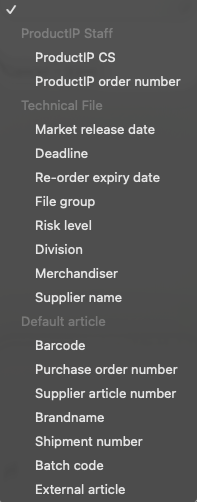
- The following options are available:
Workflow information (toggle option)
- Toggle Show workflow status ON (checked box) or OFF (unchecked box).
This option is selected by default. If unselected, the workflow status (for example Active or Collecting & Organising documents) is no longer visible in the toolbar.
Customisable information options per group
ProductIP Staff
- ProductIP CS
- ProductIP order number
Technical File
- Market release date – the date on which your product enters the market.
- Deadline – the workflow deadline set for the technical file.
- Re-order expiry date – the date when the first requirement in the file becomes outdated.
- File group custom information
- Risk level
- Division
- Merchandiser
- Supplier name
Default Article
- Barcode
- Purchase order number
- Supplier article number – the article number used by your supplier.
- Brand name
- Shipment number
- Batch code
- External article
In below example Market release date, Supplier name and Purchase order number were selected.
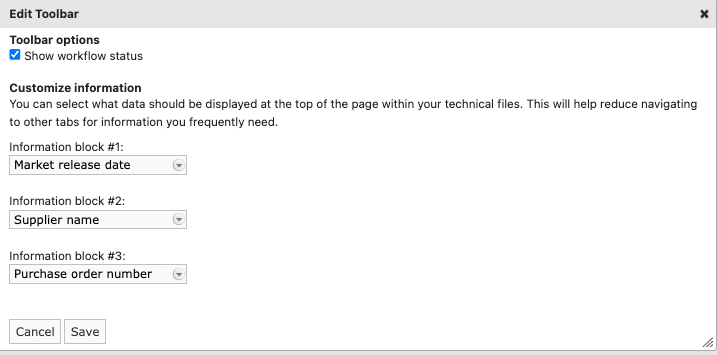
5. Click Save.
The toolbar settings apply to all your technical files. Information is only shown if it is filled in the technical file.
In the example below, the first technical file shows only the Market release date, while the second technical file shows all selected information blocks.


Tips and best practices
- Keep the workflow status visible for quick insight into the file’s progress.
- When working under the Requirements or Documents tab, showing the Market release date helps you work more efficiently.
- If you work with multiple suppliers for the same product, keep the Supplier name visible to avoid mistakes.
- If test reports include a purchase order reference, select Purchase order number in the toolbar.
- Test different combinations to match your daily workflow and reduce tab switching.
Troubleshooting
- Information is not displaying?
Refresh the page or clear your browser cache. Also check whether the information is filled in the technical file.
Still having issues? Contact ProductIP via helpdesk@productip.com.
FAQ
- Can I adjust the toolbar per technical file?
No. The toolbar settings apply to all your technical files.
-
Does my colleague see the same information blocks?
No. Toolbar settings are linked to your user account. Each user can set their own preferences.
