
After a Verifeyer form has been completed and finalised, you can review the provided data before linking the completed Verifeyer document to the relevant requirements.
Feature access
This feature is available for Professional and Enterprise customers. Contact sales@productip.com to gain access to the additional features.
Before you begin
Ensure you have received the PPWR Verifeyer form and you have access to the relevant technical file in ProductIP.
Video instructions
Steps
- Go to the Technical Files tab and open the related technical file.
- Open the Documents tab and click the form in the Name column.

- Go through the form page by page to check if the information is complete and valid:
- Verify that the data is the same as in your technical file
- Verify that the described packaging is the same as in your technical file
- Review all answers marked as “Unknown” and decide whether follow-up is needed
If the form is incomplete:
- Click Edit status to set the status to “Rejected“.
- Send out the form again to receive a new version.
Note: The receiver of your form request will have to fill out all information again!
If the form is complete or you want to accept the form “as is”:
- Click Match It! to requirements. A window pops up and the platform automatically suggests the correct requirement.

- Click Link document & Fulfill requirements. Now the form is automatically marked as “checked”.

Tips and best practices
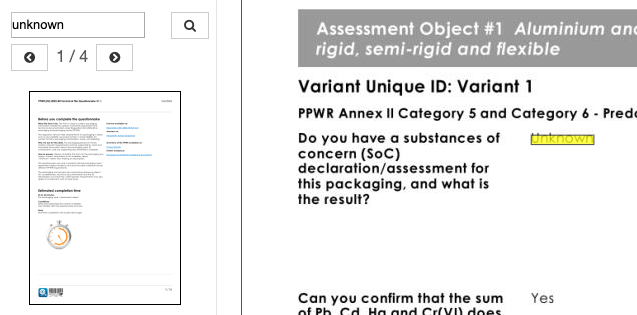
- To quickly check which questions in the Verifeyer form were answered as “Unknown”, use the search bar in the top left corner. The system shows the pages where the keyword is found and highlight all matching results in yellow.
- Once finalised, the form PDF is automatically stored under the Documents tab of the relevant technical file. You can recognise it quickly by the blue eye icon on the left side of the documents.

Troubleshooting
- Verifeyer document not visible?
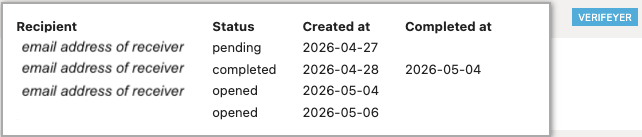
Check under the Requirements tab if the Verifeyer form was completed. If the VERIFEYER button is green, you have not yet sent out or opened the form.
Still having issues? Contact ProductIP via helpdesk@productip.com.
FAQ
- Is the complete form data stored as data fields in the technical file?
The data is not visible in your technical file, but is stored as structured data. You can export the data to Excel.- Go to the Documents tab
- Click Export to Excel on the right side of the document

- Is there a way to open the original completed form again with all filled-in answers?
You can open the finalised PDF in the Documents tab. However, the original form draft cannot be reopened or edited after finalisation. - Can the form receiver duplicate a completed form and reuse the entered data for another submission?
No. Currently, all data must be filled out again for each new submission. - What should I do with answers marked as “Unknown”?
- Use existing data first.
- Identify remaining data gaps.
- Prioritise missing data gaps based on compliance risk and regulatory impact.
- Complete missing data step by step.
-
If the Verifeyer form already requests evidence information, why do the supporting documents also need to be uploaded to the packaging technical file?
