
Use projects to organise and filter your technical files. Create and manage projects in Company Account Settings, assign technical files to a project, and use custom tabs on the Technical Files overview to quickly find the technical files you need.
Feature access
This feature is available for Admin users only.
This feature is available for all plans.
Before you begin
No steps required.
Video instructions
A short step-by-step guide will follow soon!
Steps
Manage projects via Company account:
- Go to Settings in the top-right corner of your screen.
- Select Company account.
- Open the Projects tab.
- Click the Add new project button.
- Type in the project name and click Save.
The added project appears in the overview below.
If the project is not used in any technical files, you can remove it by clicking the red cross on the right side of the project.
Add a project in the technical file:
- Open your technical file in ProductIP.
- Navigate to the Product tab.
- Click the Edit project data button.
- Click on the dropdown menu under “Project” and select the project from the list.
- Click Save.
Add a project in the technical file in batch:
- Go to the Technical files overview.
- Find the technical files where you want to add a project.
- Select these technical files by selecting the checkbox on the left side.
- Select Set project from the Choose action drop-down menu at the bottom.
- Click Execute > Yes.
- Select the project from the dropdown menu and click Save.
Add project in the technical file via Excel or CSV import:
(This feature is not available for Essential plan.)
See Import data via Excel and Import data via CSV
Tips and best practices
- Think about the current and future projects within your company before creating projects in the platform.
- Use short and clear names. Examples of project names are: “New”, “Phase 1” or “GRS”
- Check your project overview periodically to identify duplicates or projects that have never been used.
- Create custom tabs to list all technical files associated with a specific project.
Troubleshooting
- I can’t see the Projects tab.
This feature is only available for your Admin. Check who your Admin is by clicking on the profile icon in the top right corner and contact them.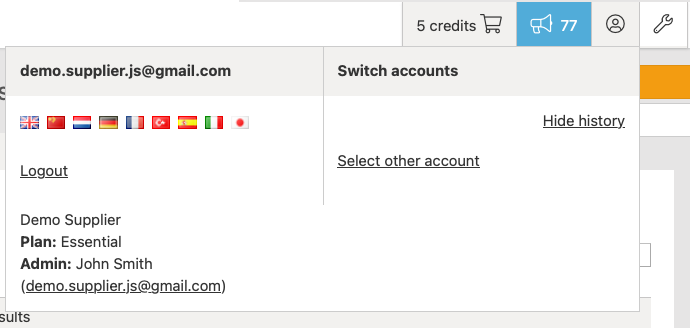
- The project is not visible in the dropdown menu in the technical file.
Check the project tab under company account and add it there.
- Want to remove a project, but the platform will not allow it.
Projects that are currently in use cannot be removed from the projects overview. You first need to find the technical files that use the project and remove it from those technical files.
Still having issues? Contact ProductIP via helpdesk@productip.com.
FAQ
- Can I add multiple projects to one technical file?
No, you can only select one project.
- Can I update projects using the import function via Excel or CSV?
No. Projects can be added via Excel or CSV import, but not removed or adjusted. Removing projects can be done manually in the technical file. Adjusting or adding the project can be done in batch in the technical file overview.
Related articles
