
Generate performance reports that provide insights into the performance of your supply chain. These reports help you monitor file request progress, evaluate suppliers performance and track user login information in your account.
Feature access
This feature is available for all plans and all users.
Before you begin
Create and manage your first technical files to ensure you have enough data for reporting.
Video instructions
A short step-by-step guide will follow soon!
Steps
- Log in to the ProductIP platform and go to the Reports tab (bar chart icon).
- Click Performance and select the report type you want to create from the list of predefined performance reports. There are 4 report types:
2a. Vendor assessment performance
1). Select a reporting level from the drop-down menu.
2). Click the icons on the right side to print or download the chart in PNG, JPEG, PDF or SVG format.
2b. Supplier performance
1). Enter the Report name (required).
2). Enter the Report description (optional), and follow step 3-6 below.
2c. File request status
1). Enter the Start date and End date and Report name(required).
2). Enter the Report description (optional), and follow step 3-6 below.
2d. Account user list
1). Enter the Report name (required).
2). Enter the Report description (optional), and follow step 3-6 below.
Step 3-6:
3. Click Reset to clear the above configuration if needed.
4. Click Run and you are guided to the Report history.
5. The Status of your report shows Queued. Depending on the amount of data, it may take some time to extract your data. Click the cross on the right side to cancel the report export.
6. Once the Status changes to done, you can use the icons on the right side to: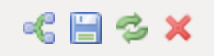
- share the report with other users in your account.
- download the report (ensure your browser allows downloads).
- re-run the report with updated data.
- delete the report.
You can go to the Reports history at any time to quickly re-run, download, share or delete previously generated reports.
Tips and best practices
- A performance report only needs to be created once. Click Re-run under the Report history tab to generate the same report with updated data.
- All reports that have been shared with you are available under the Shared with you tab.
Troubleshooting
- Cannot see the report of your colleagues?
Ask them to share the report with you. - Cannot find your downloaded report?
Check the default download location in your browser settings.
Still having issues? Contact ProductIP via helpdesk@productip.com.
FAQ
- Are other report formats available?
Tailored solutions are possible with higher plans. If you are a member of the Enterprise plan, your ProductIP team will be happy to explore individual solutions with you. - Can I set up an API / data link to my current PIM / PLM / ERP system?
Tailored solutions are possible with higher plans. If you are a member of the Enterprise plan, your ProductIP team will be happy to explore individual solutions with you. - I need other data columns or filters in my reporting. How can I customise my report?
Tailored solutions are possible with higher plans. If you are a member of the Enterprise plan, your ProductIP team will be happy to explore individual solutions with you.
- Can I visualise my reports?
Yes, go to the Dashboard tab to view your data visualised in customised graphs.
- Can I set up an automatic reporting cadence to my PIM / PLM / ERP system?
Tailored solutions are possible with higher plans. If you are a member of the Enterprise plan, your ProductIP team will be happy to explore individual solutions with you.
Related articles
