
Through the ProductIP platform, your customer can request that you create and share a technical file for one or more products. This feature helps suppliers demonstrate product compliance efficiently and ensures all required documentation is shared securely.
Feature access
You need an active ProductIP account and the option to purchase credits.
If your customer has covered the technical file creation cost, the request will be marked Prepaid. 
Before you begin
- Ensure you are registered with the email address on which the technical file request message was received.
- Ensure your ProductIP account is linked to your company domain, the company’s admin must approve new users before they can access technical file requests.
Video instructions
Steps
1. Receive the request by email
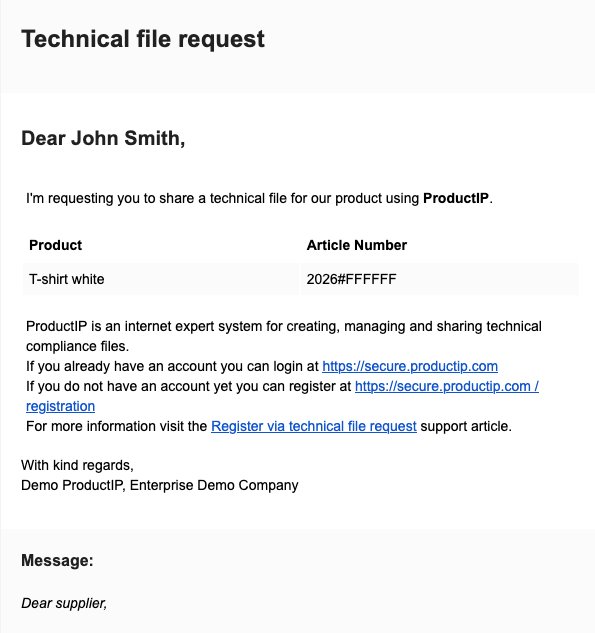
When your customer sends a technical file request, you’ll receive an email notification.
This email includes:
- A link to log in or a link to create/register your ProductIP account.
- The details of the requested technical file.
- A message from your customer.
2. Log in; go to the Requests tab and Technical file requests tab to find your technical file request.
3. Accept or Decline the request. Once the technical file request appears in your account, review the product details.
Option 1: If everything is correct, click the Accept icon.
If your customer has prepaid the technical file, it will be marked  . Otherwise, you will need to buy credits to create the technical file.
Option 2: If the same product appears in multiple requests or products can be grouped/merged together, Decline the requests and ask your customer to merge articles into one technical file.
Criteria for merging:
- Same supplier
- Same material
- Same list of requirements
- Same shared documents
- Same market release date
Option 3: If anything else is not correct with the data, Decline the request.
Once declined, the technical file request disappears from your list. Your customer must resend it after merging or correcting the data.
4. Create or Share the technical file
Option 1: Click Create to start the Technical file wizard. More information on this can be found in our related article Create a Technical file.
- If your customer already provided product data, you can review and supplement it.
- If your technical file includes your own article data, you’ll need to add your customer’s article information before sharing.
- Supplier details are not shared when you send the technical file.
Option 2: Click Share if you already have an existing technical file in your platform. Find the technical file using the search bar “Find”, select the related technical file and click Continue.
Once shared, the request will disappear from your Technical file requests tab.
5. Your customer Accepts or Declines your technical file
If your customer accepted your shared technical file:
- You’ll receive an email notification.
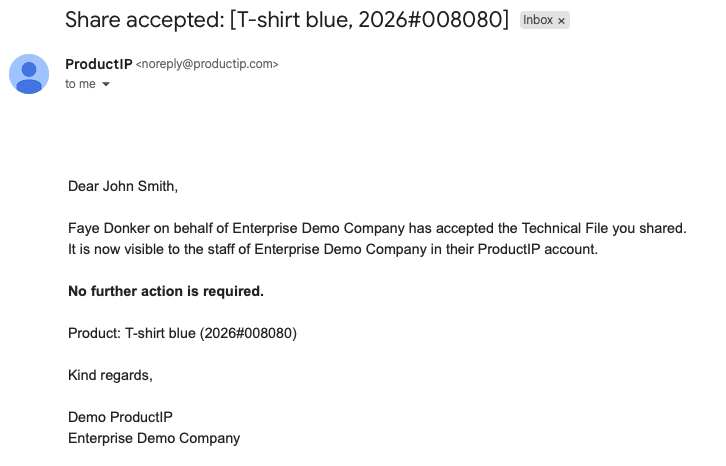
- Click the Share tab and check the status of the shared technical file.
If your customer declined your shared technical file:
- You’ll receive an email notification.
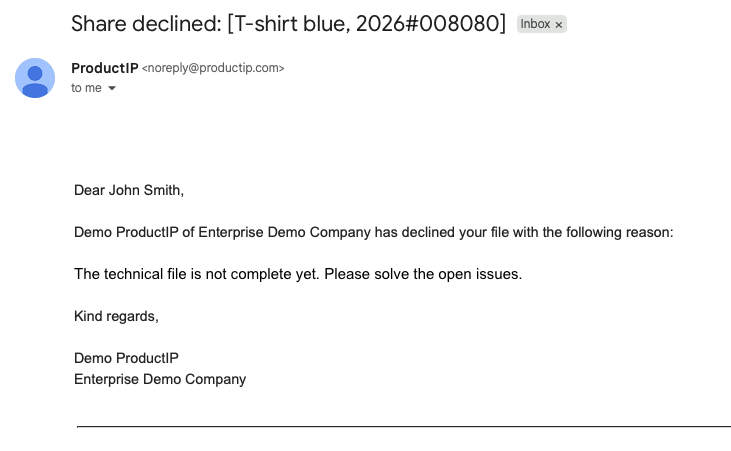
- Click the Share tab and open the technical file.
- Select the Issues tab to review the issues your customer added.
- Fix the issue and re-share the file in the Share tab by clicking the share icon
 .
.
Tips and Best Practices
- Always verify your email and company domain before accepting requests.
- Use “View & Clone” sharing to ensure your customer can manage the technical file independently. This allows your customer to make a copy and store it in their account. If you select “View Only”, the customer can view but not copy or download documents.
- You can share your technical file when it is not finalised yet. When you share your technical file your customer has access to the shared documents and can review and create issues. If you resolve these issues or upload new documents, your customer can see them realtime. When you customer declines or accept&clones your shared technical file, this link is broken and any updates are no longer visible for the other party.
- Keep clear communication with your customer if article details or materials differ.
- If multiple requests refer to the same product, ask your customer to merge them before proceeding.
- Do not use the Share button in the technical file’s “Share” tab for the first Share of your technical file. The link between your customers request and your share will be lost.
- If differences appear between the technical file and the request, ProductIP will show a compare screen. You can adjust the data or share it as-is.
Troubleshooting
- “Create” not selectable?
If you see a red banner, upgrade your account to a Corporate Account (free upgrade).
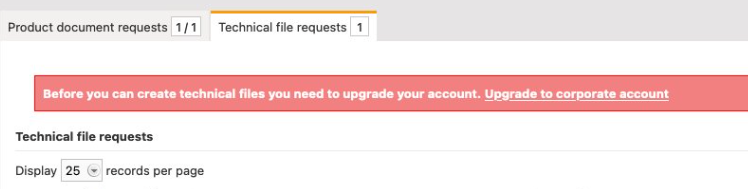
- Technical file request not visible?
You might not see the request for several reasons:
Scenario 1: Email mismatch
If your account shows no requests or technical files, the request was sent to a different email.
Solution:
· Ask your customer to resend the request using the correct email address.
· Or add the email address that received the request as a user in your ProductIP account.
Scenario 2: Account with your domain already exists
If you see a message stating that your domain already has an account, your registration is pending admin approval.
Solution: Wait for your account admin to approve your access. The admin receives an automatic email.
Scenario 3: Missing Technical File Request tab
If you can’t see the Technical File Request tab at all, your customer likely used the wrong email address.
Solution: Ask your customer to update the email address and resend the request, or ask your admin to add the correct user.
Related articles
