
Through the ProductIP platform, your customer or supplier can share a technical file for one or more products. This feature allows users to track the progress and availability of shared technical files. It helps ensure transparency, monitor completion, and verify compliance. Use this feature when collaborating with suppliers or customers on technical documentation.
Feature access
Sharing a technical file is available for all plans. Requesting a technical file is only available for Professional and Enterprise users.
Before you begin
Ensure a technical file has been shared with you or by you.
Video instructions
Prefer to watch instead? A short step-by-step guide will follow soon!
Steps
- Go to the Requests tab.
- Go to Pending view & clone shares or Pending view only shares tab depending what kind of share you have received.
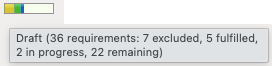
- The first column shows you the Status of the requirements in the shared technical file.

- Hover over the Status bar, a tool tip will show the current requirement fulfilment of the shared technical file.
- You can Assign a reviewer by clicking on the following symbol. The comment will be included in the platform message your colleague receives when assigning them.
- You can Update the review phase by clicking on the following symbol.
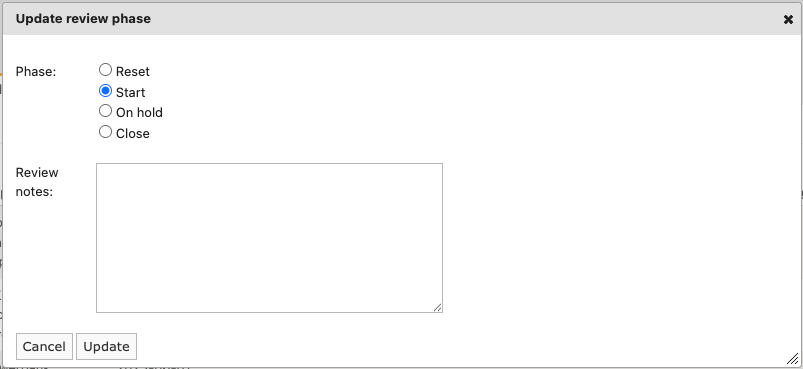
- Following window will open where you can chose different review phases. Review notes are only visible at this stage of the review. Once the technical file is declined or reviewed this information is no longer visible.
- The column Review phase shows you the status of the updated review phase status.

- When the shared technical file differs from your requested technical file (only in case of a File Request), red text Differs from request appears in the last column. Click on it and a new window will open to show the differences. You can decline the technical file with a message or open the technical file for review.
Note: If you decline the shared technical file, it will move to the Declined shared files tab.
Tips and best practices
- Use “View & Clone” sharing to ensure your customer can manage the technical file independently. This allows your customer to make a copy and store it in their account. If you select “View Only”, the customer can view but not copy or download documents.
- Keep clear communication with your customer.
- When reviewing shared technical files, open the Documents, Requirements and Issues tab in separate windows for easy access.
- Keep your list of shared technical files well organized and the status up to date for better overview.
Troubleshooting
- Status not visible?
Ensure you have the correct user rights. - Status not updating?
Refresh your page and try again.
FAQ
- Why can’t I see a shared technical file?
You may not have correct user rights, or the technical file has not been shared with your account. Contact your customer or supplier to make sure the share was sent to the correct user.
Related articles
Manage your technical file requests
Review received technical files
