
Activate the Digital Product Passport (DPP) to share selected product information with consumers, supply chain partners, and market surveillance authorities. You choose which documents are publicly available while keeping the rest of your technical file private.
Feature access
The current version of the Digital Product Passport is available on all ProductIP plans.
Before you begin
- Upload the documents you want to make public.
- Check that the product information is correct.
- Upload a product image if you want it to appear on the public page.
Video instructions
Prefer to watch instead? A short step-by-step guide will follow soon!
Steps
- Open your technical file and go to the Documents tab.
- Click Set document permissions.
- Select the documents you want to show on your public page, then click Save & Close.
- Go to the Product tab.
- Scroll to Digital Product Passport below the Product image.
- Click on the URL to preview the public page.
- The preview opens with a red banner showing that the page is not yet active.
- Click the Edit icon at “Status” in the Product tab.
- Select Active and click Save.
- Share the URL or QR code with customers, consumers or supply chain partners.
Tips and best practices
- Make the instruction manual public. Add the QR code to the product packaging or printed manual so users can always access the latest version online.
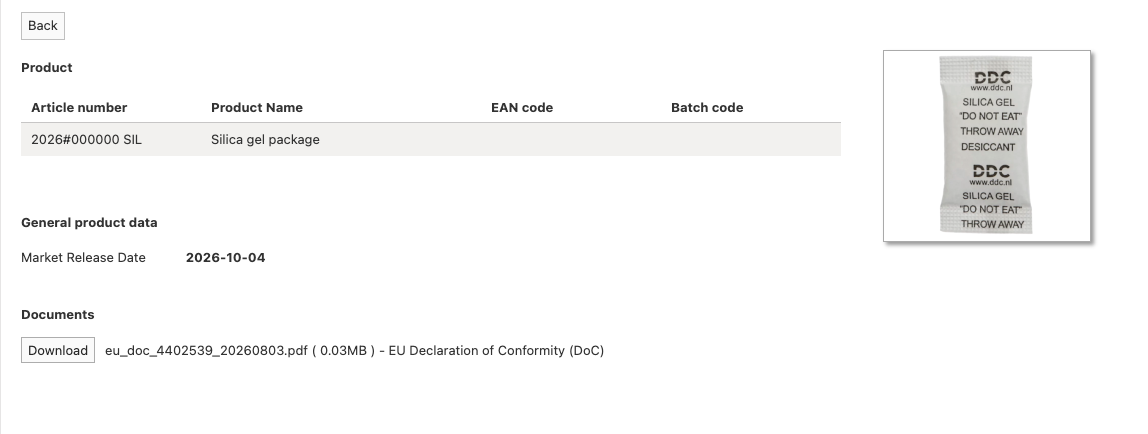
- Another document that is commonly visible on a public page is the EU Declaration of Conformity.
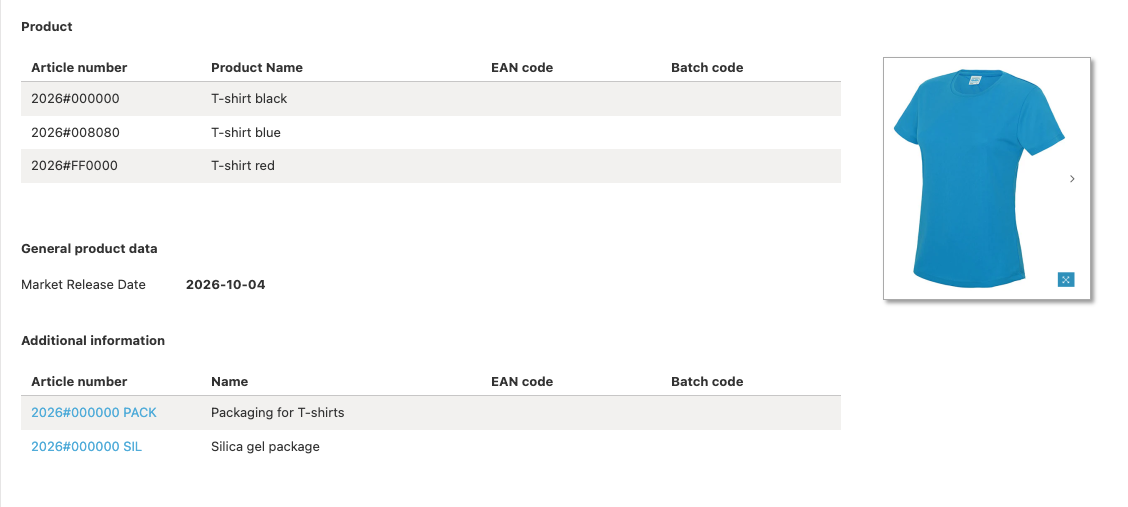
- If you create a separate technical file for a sales unit and a compliance topic (for example a packaging or included batteries) and in the Bill of Materials tab they are linked to each other. The public page of the sales unit will contain a link to the compliance topics. See an example below.
- For information on how to create this link, see Link a packaging technical file to a product technical file using the BoM.
Troubleshooting
- The Digital Product Passport page is missing documents.
The documents have not been marked as public. Go to Documents > Set Document Permissions and select the documents you want to display on the public page. Save your changes and refresh the preview.
- I activated the Digital Product Passport, but the product image isn’t shown.
No product image has been uploaded. Upload a product image in the technical file. The image will automatically appear on the public page once it has been added.
- I made changes to my technical file, but they don’t appear on the public page.
Refresh the public page after making changes. If updated documents are still missing, check that they are marked as public.
FAQ
- What is the Digital Product Passport?
The Digital Product Passport (DPP) is a public webpage that provides product-specific information, such as compliance documents and product details, to consumers, customers, supply chain partners, and market surveillance authorities. It is not the Digital Product Passport as set out in Ecodesign for Sustainable Products Regulation EU 2024/1781 (ESPR).
- Who can access the Digital Product Passport?
Anyone with the public URL or QR code can view the information you have chosen to make public after you have activated the DPP.
- Which documents are visible on the public page?
Only documents that have been marked as public using Set Document Permissions are displayed. All other documents remain private. The product image uploaded on the Product tab is also shown on the public page.
- Does activating the Digital Product Passport make my entire technical file public?
No. Only the documents that you explicitly mark as public are visible. The rest of the technical file remains private within your ProductIP account.
- Can I update the Digital Product Passport after it has been activated?
Yes. You can update product information, upload new documents and change document permissions at any time. The public page will reflect the latest published information.
- Can I deactivate the Digital Product Passport?
Yes. Change the Status from Active to Inactive in the Product tab to remove public access.
Related articles
