
Use MatchIt! to connect your uploaded documents to the correct requirements. The tool scans your document metadata and content for relevant keywords and article numbers, helping you quickly find and link the right requirement. Ideal for streamlining compliance proof and avoiding missed requirements.
Feature access
Available to all users with access to the Documents tab.
(Future update: Essential users will no longer have access)
Before you begin
- Upload all documents under the Documents tab.
- Review and update document metadata (name, document category) for clarity and accuracy.
Video instructions
Steps
1. Opening the document
- Go to the Documents tab.
- Click on the document name to open it.
- Click Edit metadata:
- Edit Name if needed, add optional Description and Reference Number.
Choose the correct Document category or Document categories.
Click Save.
2. Use MatchIt! to find suggestions
- Click Match It! to requirements to let the system suggest possible requirements. It does this based on the document category you have selected and on key words related to the requirements.
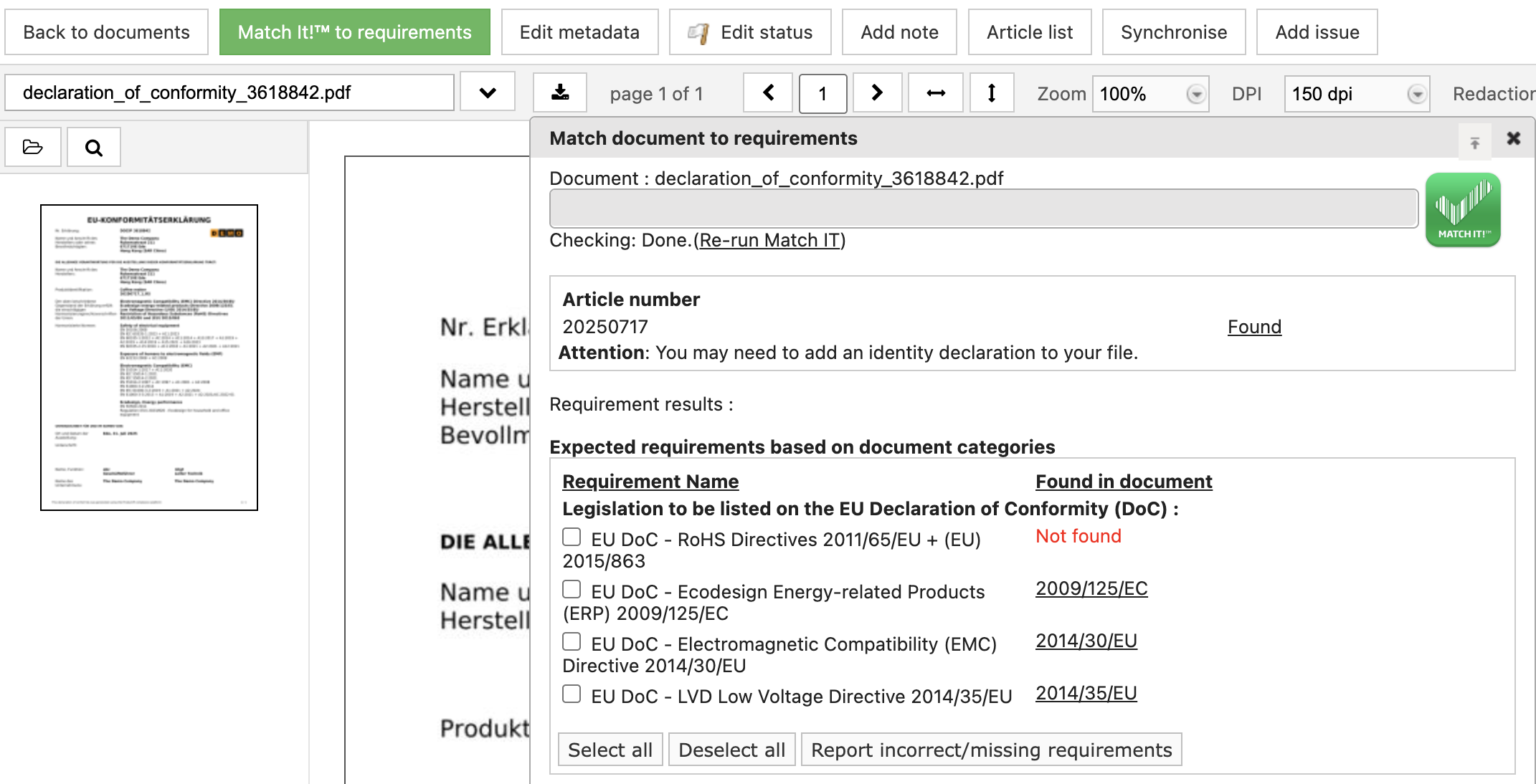
- Review the suggested/expected requirements carefully.
MatchIt! searches the document for key words. It could find the name of a standard, however in the document it is mentioned that this standard is not taken into account. You can click on the key words and it will show the findings marked yellow in the document.
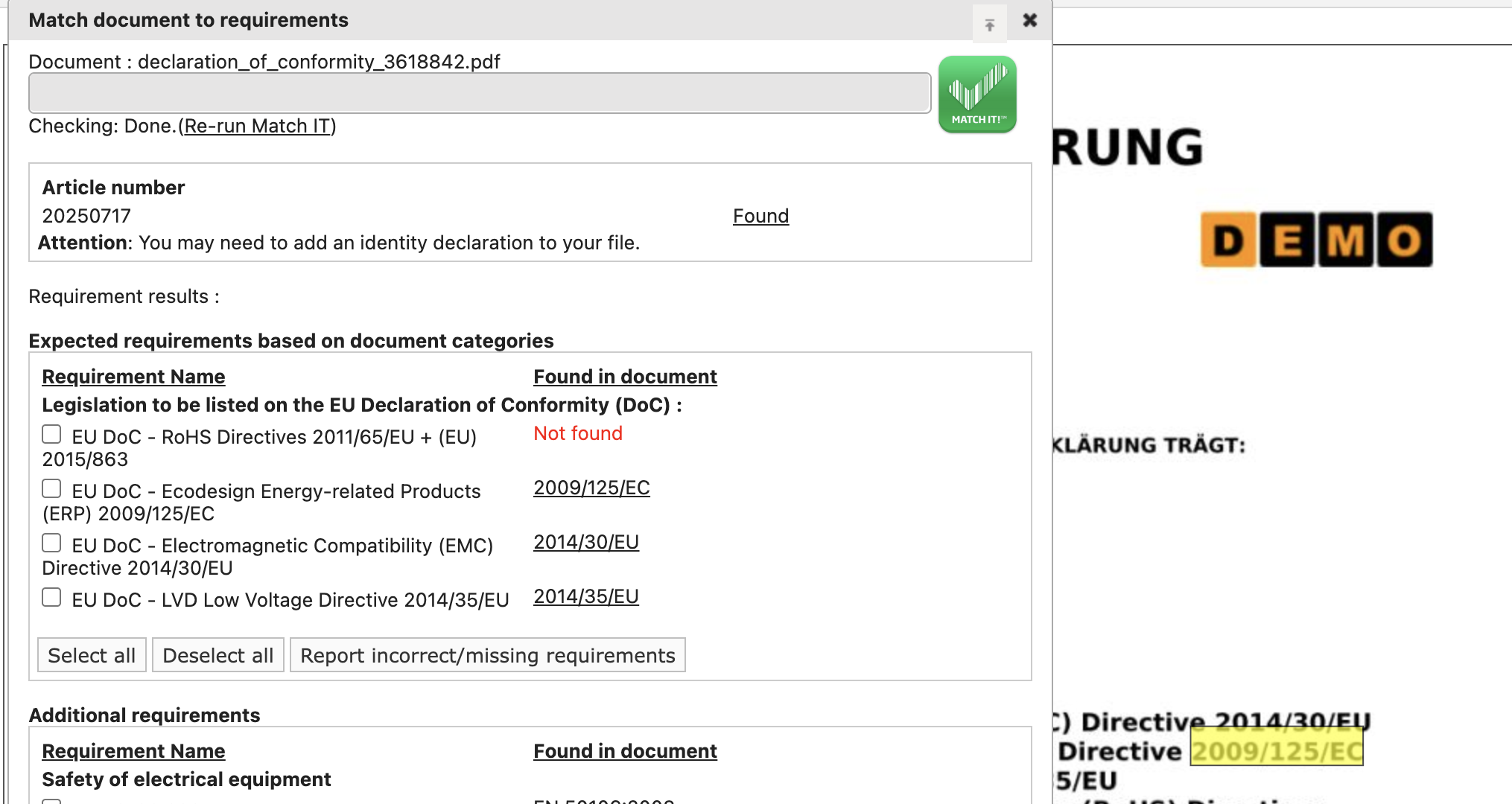
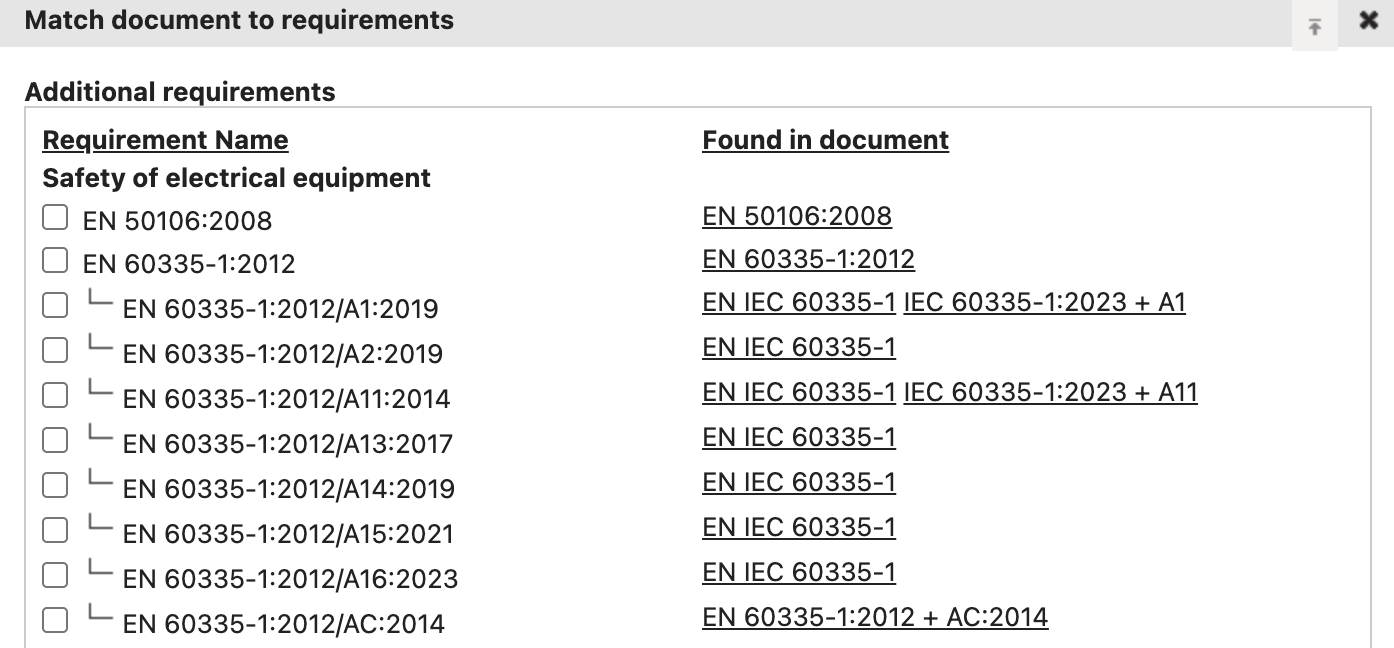
MatchIt! will also suggest Additional requirements, based on the keywords found in the document. These are all requirements from your requirements list. However, please note that in the screenshot below, this document was not marked as a “test report”. Therefore, although these requirements were suggested based on the keywords found in the document, the document cannot fulfil the requirements because it is not classified as a test report.
3. Manually select requirements (if needed)
- Click Show to expand the full requirement list.
- Search and select the correct requirement.
- If your requirement is missing in the requirement list, click Add requirement to include it in the requirement list.
4. Link to the correct requirement
- Tick the appropriate requirement(s) that the document is providing proof of conformity for.
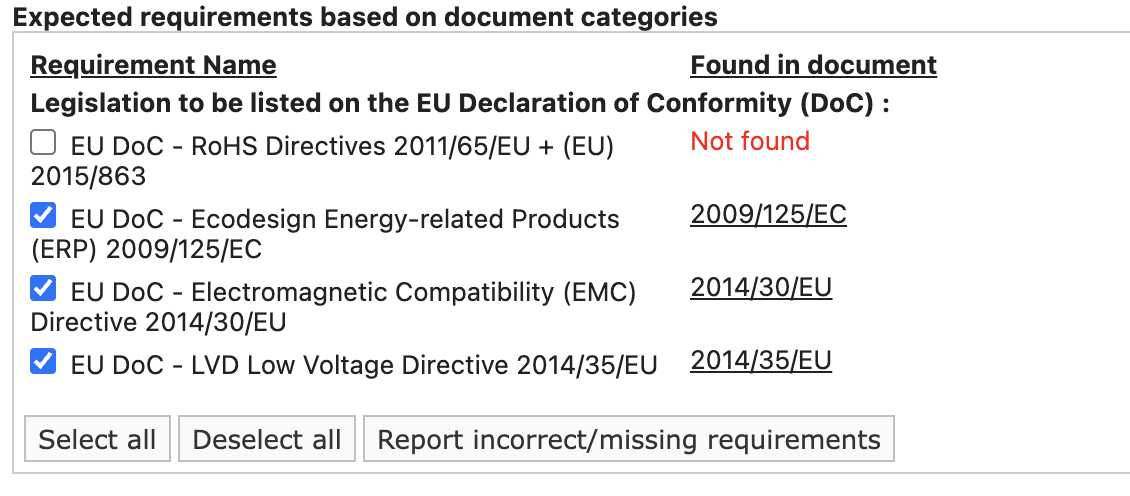
- Choose one of the following actions:

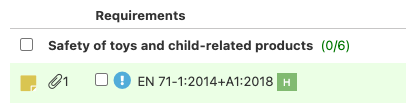
- Blue button ‘Link document to the selected requirements’ – Document is relevant but not enough to provide complete proof for the requirement. For example a test report was provided for the product in white color, while the technical file contains the product in black and white. A test report for the black item also needs to be added, before the requirement is completely fulfilled. It will show in the requirements list as below. If you include a remark it will show as a Post-it note.
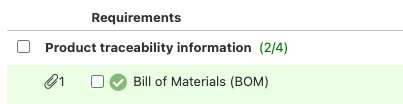
- Green button ‘Link document & Fulfill requirements’ – Requirement is fulfilled. It will show in the requirements list as below.
Tips and best practices
- Always verify MatchIt! suggestions — do not rely solely on the tool.
- Keep your metadata updated — clear document names and document categories make linking fast and easy.
- Be consistent when linking documents as blue or green — this ensures accurate compliance tracking.
- Always add a note when linking document as blue – this ensures that you or your colleague can easily see why the requirement is not completely fulfilled yet.
Troubleshooting
- If no matches are found by MatchIT! check if the document is machine-readable (most PDFs are) and contains relevant keywords. It could be that those keywords were not (yet) added to our MatchIt! tool.
- If suggestions seem incomplete, ensure the document category is correctly set in metadata. This helps MatchIt! suggest the correct requirements.
Still having issues? Contact ProductIP via helpdesk@productip.com.
FAQ
- What if my requirement isn’t listed?
Use Add requirement to include it, then link your document.
Related articles
Use metadata to link a document to the correct requirement
