
Link an uploaded document to the relevant requirements in your technical file. This shows which documents provide evidence for each requirement and helps you track whether a requirement is partially or completely fulfilled.
Feature access
Available to all ProductIP users with Edit or Manage permissions for technical files.
Before you begin
Upload documents under the Documents tab.
Video instructions
A short step-by-step guide will follow soon!
Steps
- Open your technical file and go to the Documents tab.
- In the column Linked click on the NO button.
- Click on (show) next to the text ‘Other requirements in the file’.
 The requirements in your technical file will appear.
 - Select the requirements(s) you wish to link with the document.
Note: Requirements that are partially fulfilled are highlighted in blue and requirements that are fulfilled are highlighted in green. The document can be still linked to an already partially fulfilled or fulfilled requirement. - If the MatchIT! function finds matching requirements in the document, these requirements will not be shown in the list as described in point 3 above. These found requirements can also be selected and linked with the document.
- Choose one of the following actions:

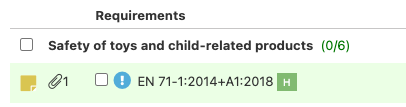
- Blue button ‘Link document to the selected requirements’ – Document is relevant but not enough to provide complete proof for the requirement. For example a test report was provided for the product in white color, while the technical file contains the product in black and white. A test report for the black item also needs to be added, before the requirement is completely fulfilled. It will show in the requirements list as below. If you include a remark it will show as a Post-it note.
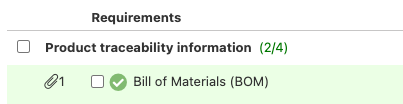
- Green button ‘Link document & Fulfill requirements’ – Requirement is fulfilled. It will show in the requirements list as below.
- Blue button ‘Link document to the selected requirements’ – Document is relevant but not enough to provide complete proof for the requirement. For example a test report was provided for the product in white color, while the technical file contains the product in black and white. A test report for the black item also needs to be added, before the requirement is completely fulfilled. It will show in the requirements list as below. If you include a remark it will show as a Post-it note.
Tips and best practices
- Be consistent when linking documents as blue or green. This ensures accurate compliance tracking.
- Always add a note when linking document as blue. This ensures that you or your colleague can easily see why the requirement is not completely fulfilled yet.
Troubleshooting
- Can’t find the related requirement in the list?
Check in the requirement list tab if the related requirement is set to excluded. If the requirement is not in your requirement list, check if you have selected the correct product category and if the Q&A was answered correctly.
Still having issues? Contact ProductIP via helpdesk@productip.com.
Related articles
Use metadata to link a document to the correct requirement
