
The requirement list helps you identify and manage the compliance requirements that apply to your products. It’s useful for tracking progress, linking evidence, and ensuring all applicable standards are fulfilled.
Feature access
All ProductIP users have access to the requirements list, where they can view and manage requirements or perform other tasks related to the requirement list. This feature is available for all plans.
Before you begin
- Ensure you have entered the correct product data, as this determines which requirements apply to the product and what documents are needed.
- Ensure your technical file is set to Draft, as closed technical files show less functionalities.
Video instructions
A short step-by-step guide will follow soon!
Steps
1. Open your technical file and go to the Requirements tab.
2. The first row shows all the tasks you can perform related to requirements. There are separate articles providing a full explanation about the functionalities.

3. When reviewing the list of requirements, you can use the filters to select which requirements you want to view based on their status, group, or category. To apply a filter, click in the field and choose an option from the drop-down list. If you click Show all, all filters will be cleared.
4. In the requirement list, all requirements are grouped. Hover your mouse over each group to see the description of each group of requirements.
5. Under each group, you can view the name, status, category, expiry date, required documents, services and regions of the requirement.
- Category – A quick reference indicating potential risks related to missing compliance proof for each requirement. This also links to the Risk Profile tab.
- Expiry Date – The date on which the requirement will expire.
- Required Documents – Specifies which document type is needed to fulfil the requirement.
- Regions – Shows the country abbreviation if the requirement applies to a specific country or region.
6. Hover over a requirement to view detailed information about that requirement.
7. There are two background colours in the requirement list:
- Blue: Indicates that the requirement has an active invite requesting the supplier to upload the document.
- Green: Indicates that the requirement has been (fully or partially) fulfilled as a result of using MatchIT.

8. Check the status indicators of a requirement on the left side:

9. Click on the right side to download templates and visit websites related to the requirement.9.
10. Click on the right side to view additional information about the requirement.
11. Refer to related articles to explore other elements of the requirement.
12. The bottom row shows additional actions you can take related to the requirements:

Select one or more requirements first, and then click the corresponding button to execute the action.
13. An overview of icons with explanations is available at the bottom. You will also see a tooltip with the same explanation whenever you hover over an icon.
Tips and best practices
- Use the templates provided by ProductIP to create the documents required for each requirement.
- Use filters for easier navigation.
- Add a note to a requirement for yourself or for internal communication. This note is not visible to suppliers who received a document request.
- Refer to related articles to perform specific tasks related to requirements.
- Regularly update your requirement list whenever regulations or product specifications change.
If a red banner appears, click the link provided to update the requirement list. The update is free of charge.
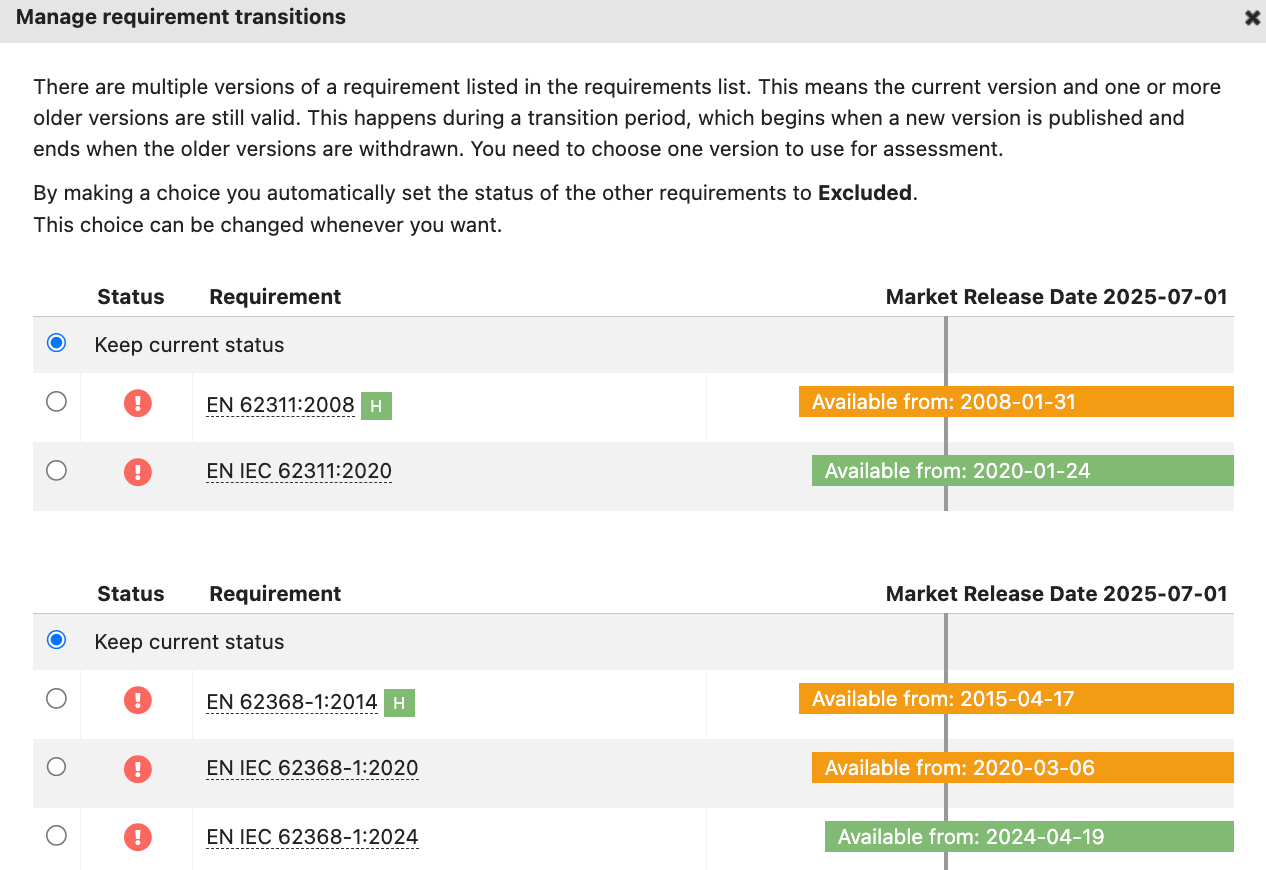
- If an orange banner appears, it means that multiple versions of a requirement apply to your product during a transition period. You need to select one version for assessment by clicking “Choose requirements” in the banner or the “Requirement transitions” button.

Troubleshooting
- Requirement not turning green?
Check if the linked document fully covers the applicable requirement.
- Missing requirements?
Check if the correct product category, market release date and regions were selected. If so, add the requirement following the related article “Managing the requirement list”.
Still having issues? Contact ProductIP via helpdesk@productip.com.
FAQ
- Can I change the requirement status manually?
Yes, this can be done in batch or per requirement. See the related article Manage the requirements list.
- What if a requirement does not apply to my product?
Mark it as Excluded(Yellow) and include a short note in the notes section.
Related articles
Report incorrect and/or missing requirements
