
Once you know how to handle a single document request from your customer you will start receiving more requests from the same or new customers. Keeping track of new requests and requests under review from your customer is key for an efficient way of working.
Feature access
This feature is available to all ProductIP users.
Before you begin
Ensure you have received at least one document request and read our resource on View a received document request.
Video instructions
Prefer to watch instead? A short step-by-step guide will follow soon!
Steps
- Open ProductIP and go to the Requests tab > Product document requests tab. If you are only working with document requests, this is the only tab available to you.
- The overview will show
Open requests:
This section shows newly received document requests (Click view request) and open document requests (Click Upload). These are the requests that require your top priority.
Open requests pending for review
This section shows document requests where you have already uploaded documents and you have notified your customer that you have uploaded what you have available. Finally, click Save & Close.
These are waiting on a reply from your customer. Check if they have left you a comment by clicking on a blue date under Last comment or open the request to see if they have reviewed any documents.
Complete requests
This sections shows document requests that were closed by your customer. You are no longer able to upload or change documents. If you have an additional document for this document request, please get in contact with your customer and ask them to re-open or send a new document request.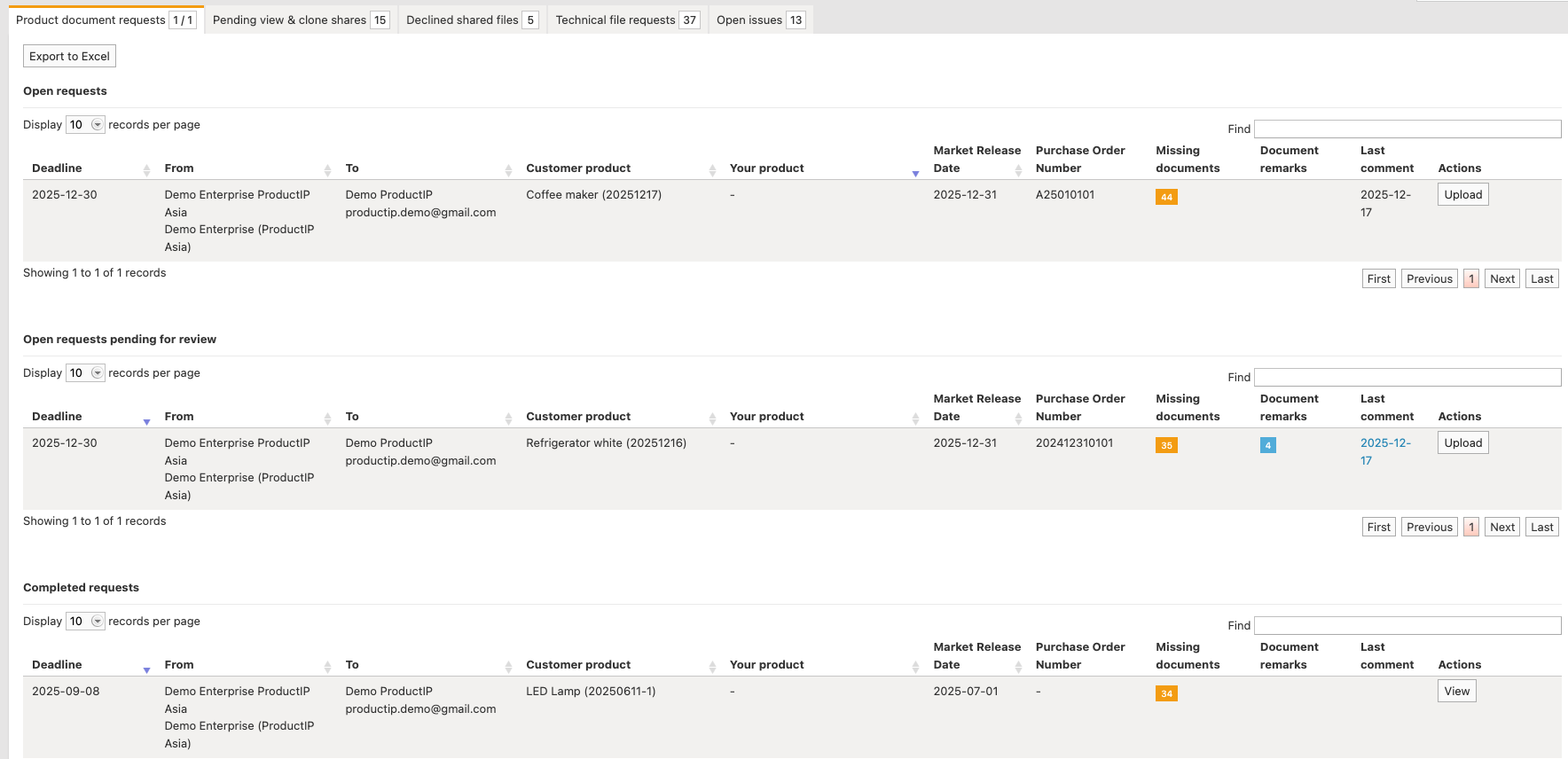
Tips and best practices
- Regularly check for document remarks. You will get notified when a comment is made by your customer, but not if they make a document remark.
- In the column “Last comment” a black text indicates you have made a comment. If the text is blue the person that sent you the document request has made a comment. Hover over the text or open the document request to read it.
Troubleshooting
- Can’t see any Open requests pending for review and/or the Completed request section?
This means there are no document requests with this status.
Still having issues? Contact ProductIP via helpdesk@productip.com.
FAQ
- Can I still add document after the document request is closed?
No, you need to ask your customer to re-open or send a new document request.
Related articles
View a received document request
