
Logging in to ProductIP gives you access to your technical files, whether you created them or have been granted access by others. If you are part of multiple company accounts, you can easily switch between them without logging out.
Feature access
All ProductIP users can log in to ProductIP using their registered email address and password. Users connected to multiple company accounts can easily switch between them. This feature is available for all plans.
Before you begin
- Make sure you have a registered ProductIP account.
- Keep your login credentials (email and password) ready.
- If you have access to multiple company accounts, ensure you know which one you need to work in before switching.
Video instructions
Steps
Logging in
- Go to the ProductIP login page.
- Enter your email address and password.
- Click Login to access your account.
- If you don’t have an account, click Register and follow the instructions to create one. (see Related Articles).
- Forgot your password? Click Request a new password. You will receive an email with a link to set a new password. Click the link in the email and you will be automatically directed to the password reset page. Reset your password and note that it is only possible to request a new password once within a 24 hour period.
Switching accounts
If you are connected to multiple company accounts, you can switch between them directly from within the platform.
- Log in to ProductIP and go to Switch account by hovering your mouse on the user icon (
 ) in the top-right corner.
 - Choose an account from the history list, or click Select other account if this is your first time switching.
- Select the account you want to access from the list of available accounts, or use the Find field to search for it. The system will automatically switch you to the selected account.
- Select the checkbox if you want to load preferences and tabs of that user.
- Click Switch back to my own user account to return to your own account.
Tips and best practices
- Bookmark the login page for quick access.
- If you work with multiple companies, make sure to double-check which account you are currently in before creating or editing a Technical File.
- If you frequently switch between accounts, familiarise yourself with the company names as they appear in the history list.
Troubleshooting
- Cannot log in?
Check your email address and password for typos. If it has been more than one month since your last login, you will see a message when logging in and receive an email from ProductIP. Follow the instructions in the email to validate your account.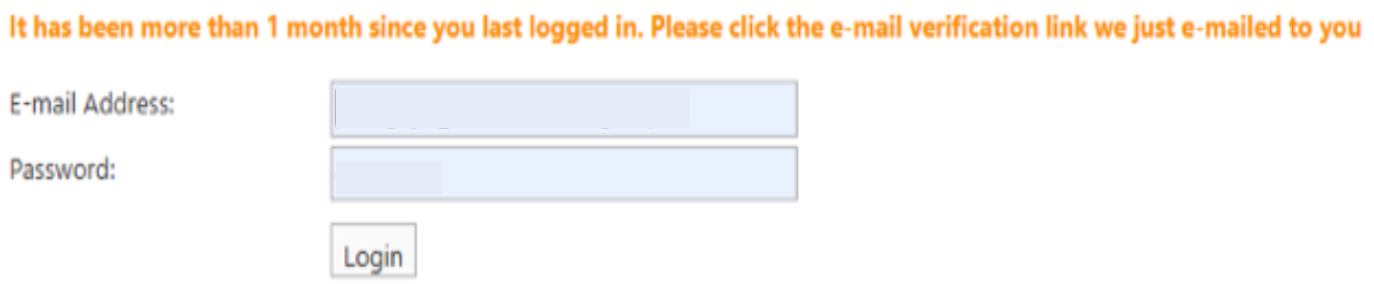
- Did not receive the password reset email?
Check your spam folder if you don’t receive it within 5 minutes, or make sure the email address you entered is correct.
- Cannot see another account to switch to?
Make sure that you’ve been invited and accepted to join multiple company accounts. If not, contact your company admin.
FAQ
- Can I be connected to more than one company account?
Yes, if you’re invited to multiple company accounts, you can switch between them at any time. - Do I need separate logins for each company account?
No, you use the same email address and password for all accounts you’re connected to. - Will switching accounts affect my saved work?
No, each company account has its own technical files and settings. Work is saved separately under each account. - Can admins control account access?
Yes, company admins manage user access and can add or remove users from their account.
Related Articles
