
When you receive documents such as test reports, you need to verify whether they meet the necessary requirements. Reviewing and linking the documents correctly keeps your technical file accurate and complete.
Feature access
All ProductIP users with access to technical files.
Some features, such as MatchIt!, will not be available on the Essential plan in the future. To explore additional features or upgrade your plan, contact sale2@productip.com.
Before you begin
Ensure your admin has granted you access to the related technical file.
Make sure there are unchecked documents uploaded to the technical file.
Video instructions
A short step-by-step guide will follow soon!
Steps
1. Go to the Documents tab in your technical file.
2. If no documents are shown, click on “Collected documents” to unfold.
3. Click on the Name of the document to open the unchecked document
4. Review the document based on:
- Is this information related to your product? Check the article number and/or product picture. Use the Article List button to verify.
- In case of a test report: Who performed the test, when was the test performed and what are the results? Is the issuer accredited to carry out the testing?
- In case of a statement: Is the information complete and did the correct party sign the document?
- Do you find any inconsistencies in the document? Examples could be inconsistent page numbers.
5. Edit metadata of your document if needed (see Use metadata to link a document to the correct requirement).
6. If the document meets the requirements, link the document to the related requirements. Once linked, the document status will automatically change to Checked.
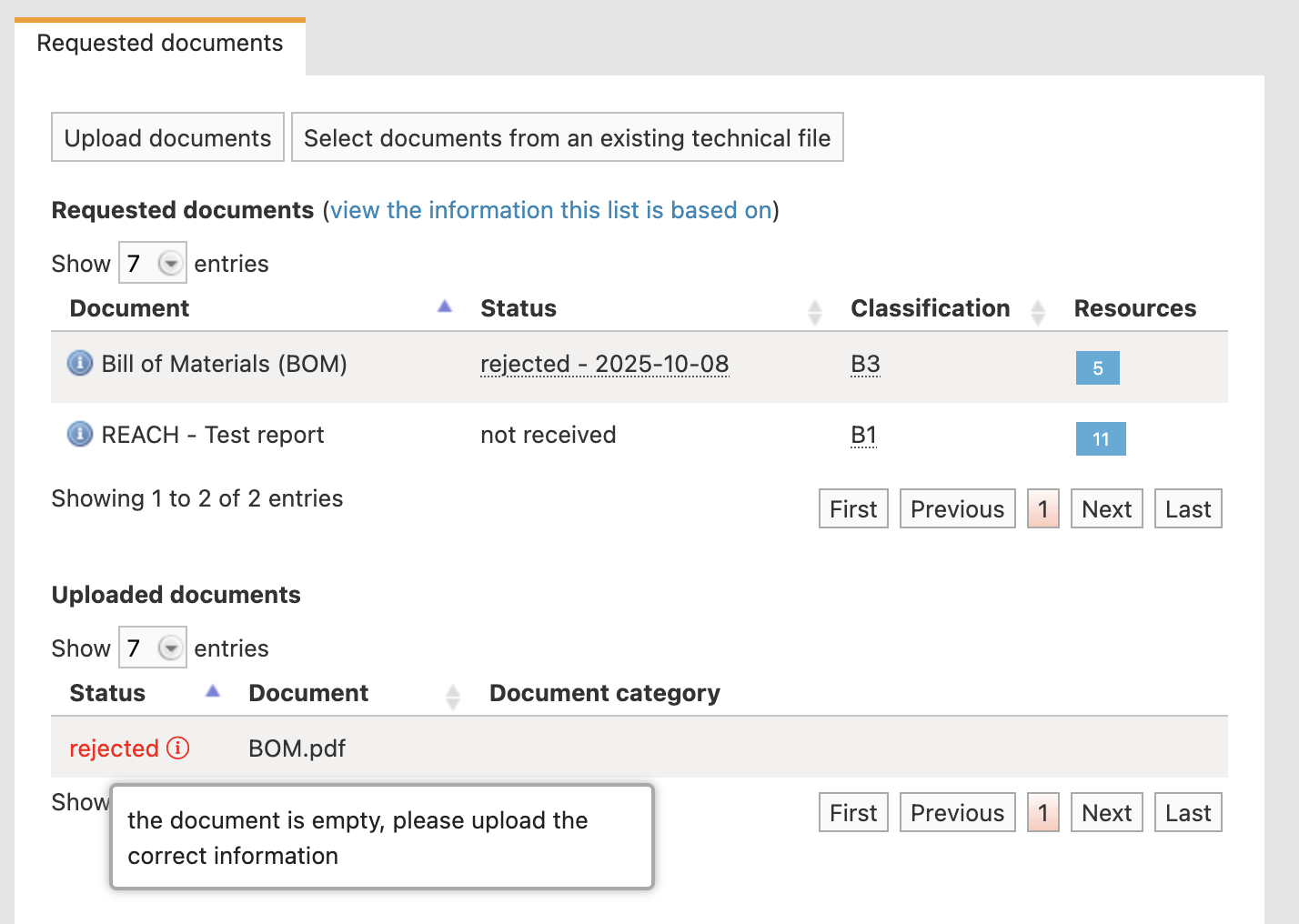
7. If the document does not meet the requirements, go to Edit status and set the document to Pending or Rejected, adding a remark.
Your supplier will see this document status and remark on their side of the platform.
We recommend also sending an update using Add task or Add comment under the Timeline tab.
Example of supplier’s view when a document is rejected with a remark:
Tips and best practices
- Create a tab for “Unchecked Documents” in the Technical file overview to easily navigate to documents that need your review.
- Adjust a document’s status without opening the document using the flag icon.
- Update document status for multiple documents at once using Set document status at the bottom of the screen.
- Use Synchronize to apply metadata and linked requirements to identical documents in other technical files.
- Quickly jump from document to document by using the document selection drop down in the top left of the document viewer.
Troubleshooting
- Cannot change a document status?
Check if the technical file has the status draft and ensure you have edit permissions for that technical file.
FAQ
- Can I review and link multiple documents at once?
You can set the status of multiple documents at once using the Set document status button, but you need to link each document to its requirements individually.
- Will suppliers see my remarks on rejected documents?
Yes, suppliers can view document statuses and your remarks on their side of the platform.
- If I send out a document request will this person get access to my technical file?
No, this person will only have access to basic product data, your selected market release date, regions, product category and Q&A and the requirement information and resources linked to the documents you have requested. When you upload documents yourself to the technical file, this person can’t see these documents.
Related articles
View a received document request
Use metadata to link a document to the correct requirement
Link your document to the correct requirement using MatchIT
Track your progress on the timeline
